First, log into the UConn AGO site (https://connecticut.maps.arcgis.com) using your NetID. For a refresher on logging-in with your NetID, read this: https://s.uconn.edu/ago-login
If you do not have a UConn issued AGO account, email mrozinski@uconn.edu to request one. To verify your affiliation with UConn, all requests for AGO accounts should be sent from your UConn email (with @uconn.edu at the end).
You should be aware that ArcGIS Pro is a Windows based program and there is no MacOS version (unless you are running some sort of Windows virtualization).
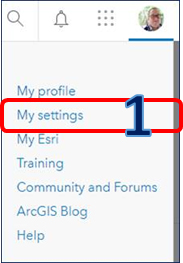
Step 1. In the upper right, go to My settings (click on your profile picture):
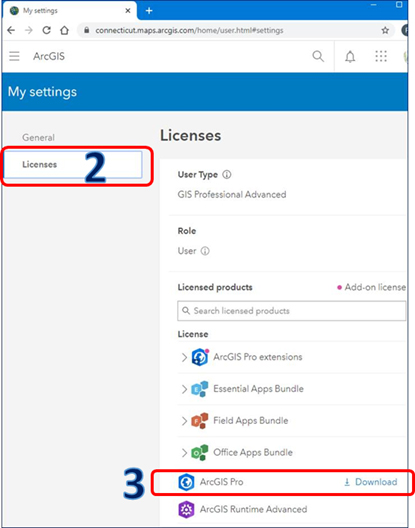
Steps 2 & 3. On the My Setting page, choose Licenses. The link to download the software is to the right of ArcGIS Pro.
Notes:
ArcPro 3.5 requires Microsoft .NET version 8 (or higher) to install correctly.
- During ArcPro installation, if prompted with a window stating you do not have the proper .NET installed, you can get it directly from this portal: https://dotnet.microsoft.com/en-us/download/dotnet/8.0. Pick the version that matches your operating system, which most likely is 64-bit Windows: https://dotnet.microsoft.com/en-us/download/dotnet/thank-you/runtime-desktop-8.0.18-windows-x64-installer
updated: 07-23-2025